Abdulsalam Otene
Checking your O-level result on JAMB CAPS helps you to confirm whether your results have been uploaded correctly on the JAMB portal or if it has not been uploaded.
One of the reasons that most people don’t gain admission into university is not because they failed their JAMB or Post-UTME, but it is because most of the aspirants failed to confirm their O’level on the JAMB portal, or some didn’t upload it at all on the JAMB portal.
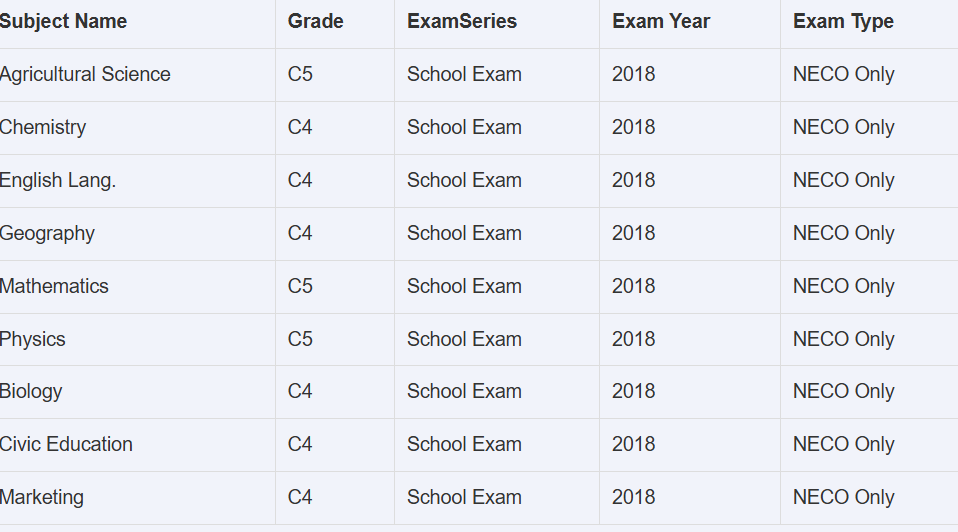
Sometimes, you can pay the CBT attendant to help you upload your WAEC, NECO, or GCE result on the JAMB portal, but they can forget to do it, or some will enter a wrong grade, which will lead to automatic disqualification from the admission exercise.
To avoid wasting your JAMB score or wasting another year at home, you need to confirm your result on the JAMB portal. To do this and confirm your result on the JAMB portal, we are going to guide you with the steps to take to confirm your O-level result on the JAMB portal.
How To Check O-Level Result On JAMB CAPS
If you’ve uploaded your O’Level result (WAEC, NECO, or NABTEB) during JAMB registration, it’s important to confirm that it’s correctly displayed on your JAMB CAPS. This ensures your admission won’t be delayed or affected.
Follow these simple steps to check your O-Level result on JAMB CAPS:
- Visit the JAMB e-facility website using your internet-accessing device. If you are using a mobile phone to access the portal, make sure to set your mobile view to a desktop view so you can see the full website.
- Log in to Your JAMB Profile. Enter your JAMB email address and password to access your dashboard.
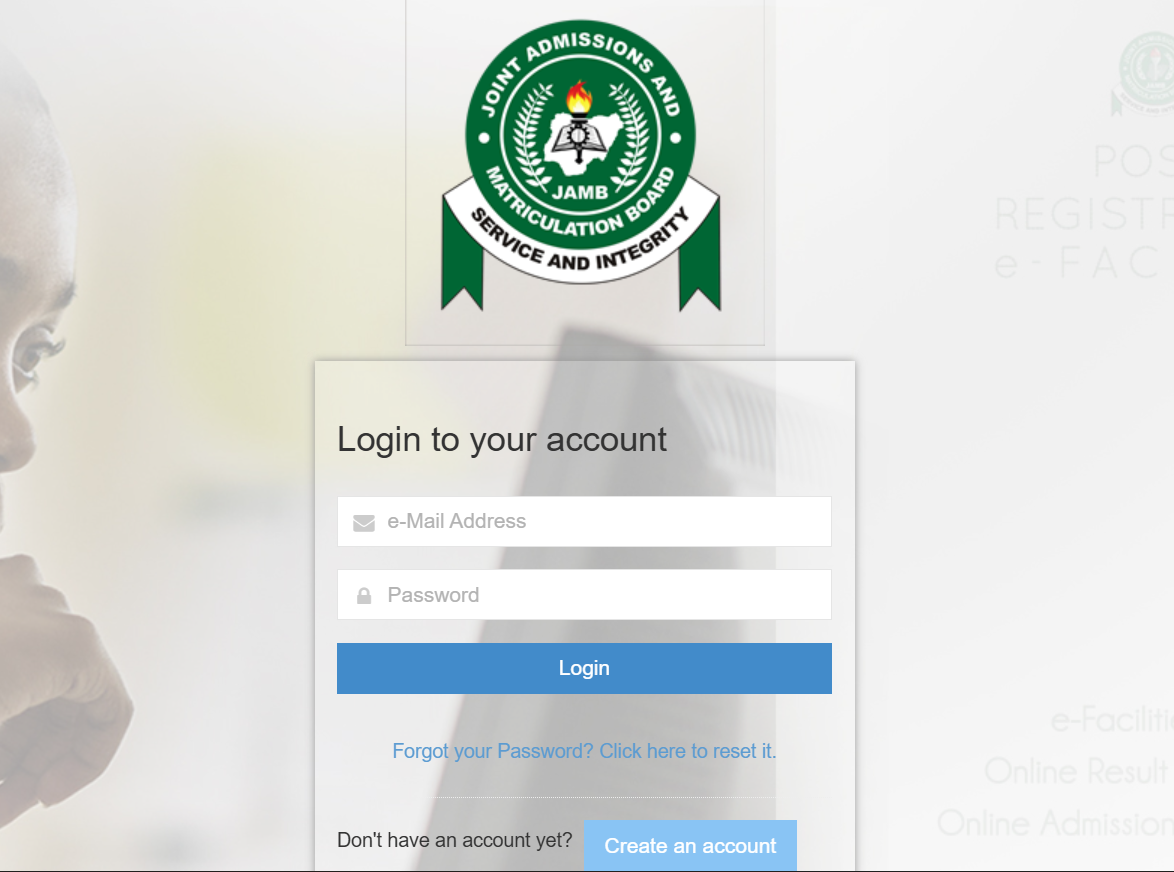
- After logging in to the e-facility, scroll down and tap on the “Check Admission Status.“
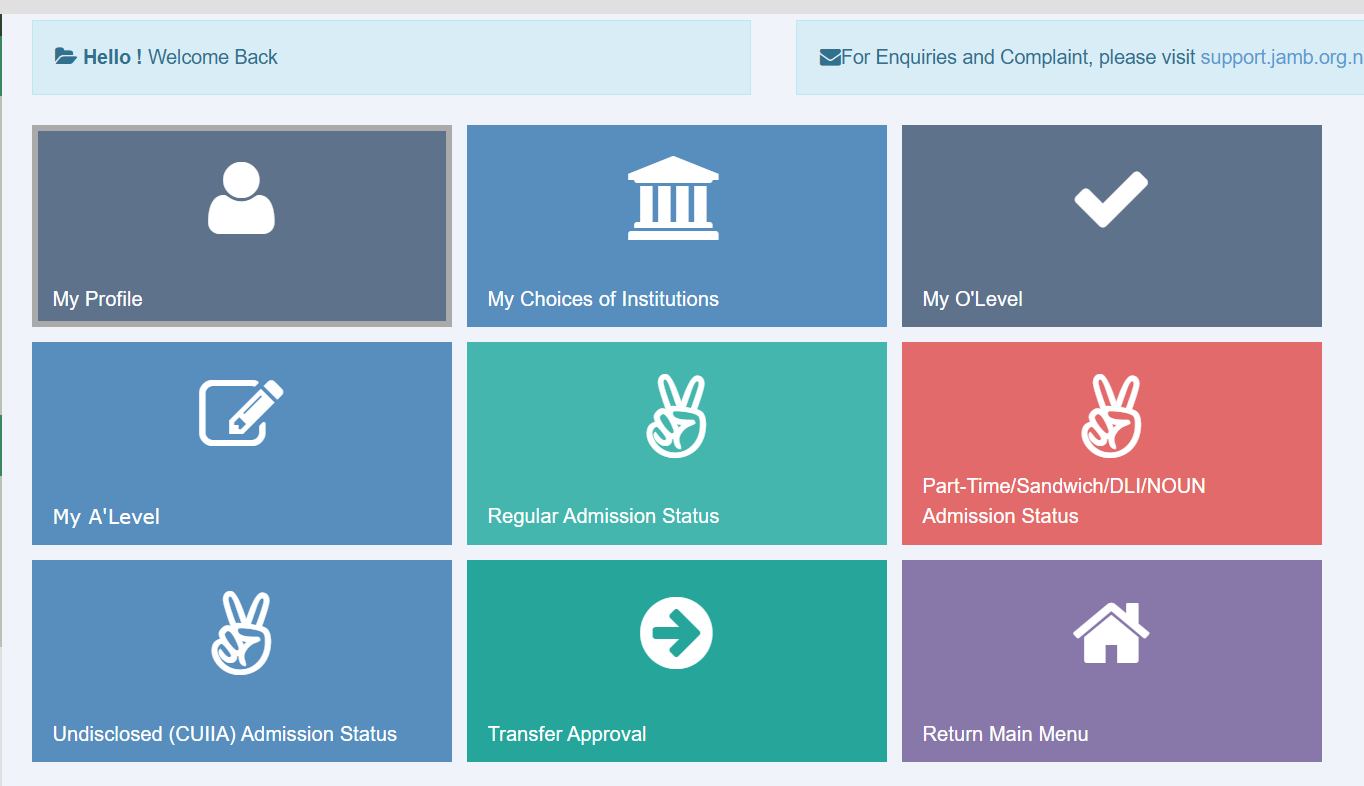
- On the Check Admission status, Tap on “Access My Caps”. This page will lead you to the admission CAPS, where you can see your admissions status and O’level result grades. Note for Mobile Users: If the screen looks blank or a side menu is missing, you must click the three dots in the top-right corner of your Chrome browser and select ‘Desktop Site’. This will allow the full CAPS menu to appear on your phone.”
- Tap on the “My O’level” menu to check your current upload result on your JAMB CAPS.
Your uploaded O-Level subjects and grades will be displayed on the screen.
What to Verify After Accessing Your O’Level Page
Once you log in to your O’level page, you need to verify three critical things to be sure that your results were properly uploaded to the JAMB CAPS.
The three critical things to look out for on the JAMB O’level page are:
- Grades Accuracy: Check that all the grades (A1, B2, B3, C4….) on the portal are accurate with your physical result grade. Take time to check all the grades for the 9 subjects because any error can cost you your admission.
- Number of Subjects: Count all the number of subjects that are displayed on the O’level page and make sure there are nine. When your subject is less than 9, it could affect your admission.
- Examination Number: Check your O’level examination number and be sure it corresponds with what is physically printed on the result. A wrong examination number will lead to automatic disqualification when JAMB wants to verify your O’level result before admission, so be sure it is correct.
Note: If you just uploaded your result at a CBT center today, it may take 24 to 72 hours to appear on your personal CAPS profile. Check back after 3 days if it still says ‘No Result Found’
Frequently Asked Questions
My O’Level result is not showing what I should do?
If your result is not displayed, it means your O-Level result wasn’t uploaded, or it didn’t reflect properly. Visit a JAMB-accredited CBT centre and ask them to upload your O’Level results again.
Can I use two sittings for my O’Level on JAMB CAPS?
Yes, JAMB allows two sittings (for example, combining WAEC and NECO). Make sure both results are correctly uploaded and visible on your CAPS profile.
Can I check my JAMB CAPS O’Level result on phone?
Yes, you can log in to the JAMB e-facility portal using your phone browser and check your result. Just make sure you switch to desktop view if the CAPS menu doesn’t display properly.
Is there any payment required to check the O’Level result on CAPS?
No, checking your O’Level result on CAPS is completely free. You only need to log in to your JAMB profile.
What happens if my O’Level result isn’t uploaded?
If your O-Level result isn’t uploaded, you won’t be considered for admission. Make sure you upload it as soon as possible at any JAMB accredited CBT center. See our guide on How to Upload O-Level Results on JAMB Portal for the full requirements
Conclusion
Checking your O’Level result on JAMB CAPS is a simple but crucial step in your admission process. It helps you confirm that your grades are correctly uploaded and ready for admission consideration. If your result isn’t showing, don’t panic, just visit a JAMB-accredited CBT centre to re-upload it.